顯示具有 Android 標籤的文章。 顯示所有文章

2017年2月3日 星期五

【Android】Sound Recorder Compare


【Android】Android Search Framework - SearchManagerService

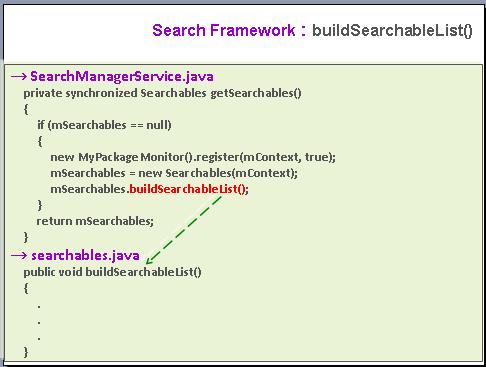
./frameworks/base/core/java/android/server/search/SearchManagerService.java


 呼叫buildSearchableList()
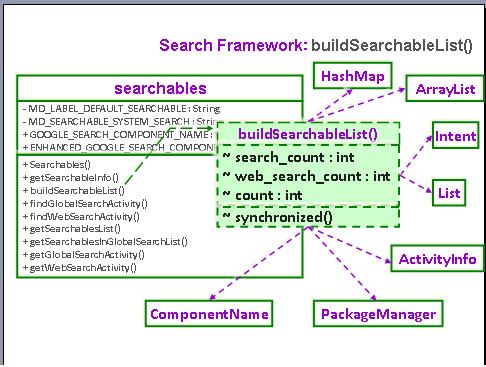
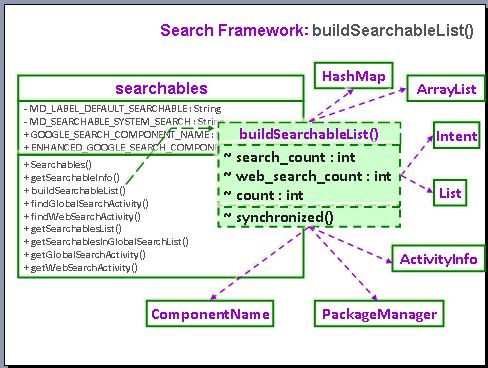
這個function來自Searchables.java,它會
(1) 建立一個可被全面搜索的Activity清單,用來搜索ACTION_SEARCH和ACTION_WEB_SEARCH的intent
(2) 並且清除現有的所有Activity的雜湊表(hash)→ 當使用者按下 ‘search’ 會重新建立
(3) 這個方法應該只會在開機 or 當我們知道清單被改變的時候才會執行
(4) 如果AndroidManifest.xml裡面。Activity若有宣告,
那同時也需要有這個
因為,
function中的寫法searchList = ...的第二個參數 GET_META_DATA,會要求傳回那個Activity相對應的meta-data,
所以如果不設定meta-data就不會被加入清單


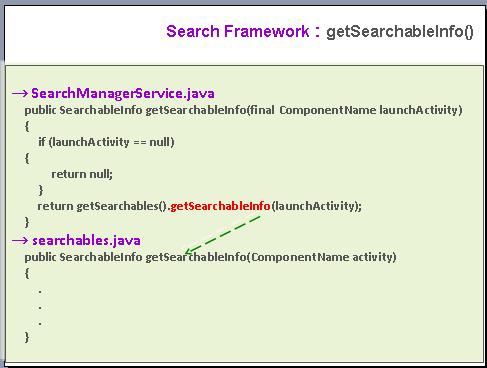
 檢查Activity是不是有search功能的,如果是就拿它的meta-data資料;如果不是Searchable的Activity或是沒有宣告meta-data,就會傳回 null


 設有GLOBAL_SEARCH權限可供global search 的activity清單,在有變更時做更新


 從PackageManager清單中搜尋有提供web search的所有activity

【Android】Android Search Framework - Implement - getPackageManager().getInstalledApplications(0)


SearchableActivity.java
...前略...
 public void query_AP()
 {
        //列出所有AP  
        PackageManager manager = context.getPackageManager();
        List applicationInfos = manager.getInstalledApplications(0);        
        Iterator iterator = applicationInfos.iterator();
        
        try 
     {
         lstStringItem = new ArrayList>();
         do
         {
          ApplicationInfo applicationInfo = iterator.next();          
          HashMap resultMap = new HashMap();
          resultMap.put("packageName", applicationInfo.packageName);   
             resultMap.put("packageLabel", manager.getApplicationLabel(applicationInfo).toString());
             lstStringItem.add(resultMap);             
         }while(iterator.hasNext());
     }
     catch (Exception e) 
     {
     
     }

        SimpleAdapter saImageItems = new SimpleAdapter(this,   
       lstStringItem,   
       R.layout.ap_item,//TextView*2  
       new String[] {"packageName", "packageLabel"},    
       new int[] {R.id.AP_TextView01, R.id.AP_TextView02}
      );
        listview.setAdapter(saImageItems);       
 }
...
//

2015年9月17日 星期四

【Android】透明背景

在 AndroidManifest.xml 中,為該 Activity 加上一行「android:theme="@android:style/Theme.Translucent"」即可。

<activity android:name=".Speaker"
    android:theme="@android:style/Theme.Translucent"
    android:screenOrientation="portrait"
    >
</activity>

==============================以下為舊資料==============================
    透明#00000000
半透明#e0000000


android:background="#00000000"
android:background="#e0000000"  


    透明setAlpha(0)
不透明setAlpha(255)
View v = findViewById(R.id.oneWidget); 
v.getBackground().setAlpha(155);


透明@android:color/transparent
android:background="@android:color/transparent"


./res/values/colors.xml
<color name="transparent">@android:color/transparent</color>
./res/values/styles.xml 
<item name="android:windowBackground">@color/transparent</item>

2015年9月16日 星期三

【Android】 將ListView的分隔線取消

<ListView
            android:id="@+id/listview_gb_level"
            android:layout_width="match_parent"
            android:layout_height="wrap_content"
            android:layout_marginRight="5dp"
            android:layout_marginLeft="5dp"
            android:layout_marginBottom="30dp"
            android:visibility="visible"
            android:divider="@null"    
            ></ListView>

2015年9月15日 星期二

[Android API] TextToSpeech 好用文字發音

下載Google Translate 的jar檔

Eclipse >Package Explorer 中選取開發的專案 > Propertires > Java Build Path > Libabries > Add External JARs > 選到剛下載的.jar位置

import com.google.api.translate.Language;
import com.google.api.translate.Translate;

public class TestPage extends Activity implements OnInitListener
{
    private TextToSpeech mTts;
    @Override
    public void onCreate(Bundle savedInstanceState)
    {
//檢查TTS數據是否已經安裝並且可用  
        Intent checkIntent = new Intent();  
        checkIntent.setAction(TextToSpeech.Engine.ACTION_CHECK_TTS_DATA);  
        startActivityForResult(checkIntent, REQ_TTS_STATUS_CHECK);
    }
@Override
public void onInit(int status) {
    //TTS Engine初始化完成  
    if(status == TextToSpeech.SUCCESS)  
    {  
        int result = mTts.setLanguage(Locale.US); // 語言
        mTts.setPitch(1.0f); // 音調
        mTts.setSpeechRate(1); // 速度
        //設置發音語言
  //判斷語言是否可用
        if(result == TextToSpeech.LANG_MISSING_DATA || result == TextToSpeech.LANG_NOT_SUPPORTED) {  
   //無法使用 
   Log.d("522", "Language is not available");    
        } else {  
   //可以使用, 這才去呼叫我們自己寫的function
         refreshQustion();    
        }  
    }
}
@Override
protected void onActivityResult(int requestCode, int resultCode, Intent data)
{
  if (requestCode == REQ_TTS_STATUS_CHECK)
  {
   if (resultCode == TextToSpeech.Engine.CHECK_VOICE_DATA_PASS) // 如果TTS Engine有成功找到的話
   {
    mTts = new TextToSpeech(this, this);
    // 宣告一個 TextToSpeech instance, 註冊android.speech.tts.TextToSpeech.OnInitListener
    // 當TTS Engine 初始完後會呼叫 onInit(int status)
    Log.d("onActivityResult", "onInit");
   }else{
     // 如果 TTS 沒有安裝的話 , 要求安裝
    Intent installIntent = new Intent();
    installIntent.setAction(TextToSpeech.Engine.ACTION_INSTALL_TTS_DATA);
    startActivity(installIntent);
   }
  }
}
@Override
protected void onPause() {    
    super.onPause();  
    if(mTts != null) {  
  //activity暫停時也停止TTS
        mTts.stop();  
    }  
}  
@Override
protected void onDestroy() {    
    super.onDestroy();
    if (mTts != null)
    {
     mTts.stop();
     //釋放TTS的資源
     mTts.shutdown();
    }
}
public void refreshQustion() { 
  mTts.speak("text", TextToSpeech.QUEUE_FLUSH, null);
  //TextToSpeech.QUEUE_ADD 為目前的念完才念
  mTts.speak("tv_question.getText().toString()", TextToSpeech.QUEUE_ADD, null);
}
}


2015年9月14日 星期一

【Android】用Thread來sleep

public void fireButton(View v)
{
  new Thread(new Runnable(){
      @Override
      public void run() {
        try{
                Thread.sleep(1500);
                Message msg = new Message();
                   msg.what = 1;
                   searchHandler.sendMessage(msg);
               }
               catch(Exception e){
                   e.printStackTrace();
               }
      }          
  }).start();
}

Handler searchHandler = new Handler(){
  @Override
  public void handleMessage(Message msg) {
   super.handleMessage(msg);
   //睡完兩秒以後換下一題
   refreshQustion(testPage);
    }
};

2015年9月13日 星期日

【Android】PersonNote圖文筆記製作


胡老師:
★本群組電腦高手-柚同學,精心研發創作的app 軟體「PersonNote圖文筆記製作」,有創意,太實用了, 非常值得大力推廣使用!
▲老師已立即安裝,正在摸索練習中,更希望各位好朋友們,也都熱烈支持,安裝使用。
▲大家可以把日常生活中的各類照片,配上說明,保存成為生動活潑又實用的「圖文筆記」。
▲感謝柚提供這麼好的軟體,免費讓大家使用。難得有如此寶貴的機會,有幸認識原創高手。
▲大家不會使用時,儘量在app商店向柚請教,讓後續安裝的人,也可以知道使用心得。
▲當然更希望各位好朋友們,記得一定要全部都給柚「五顆★」的評價!鼓勵柚繼續update,達到十全十美的完整功能。
▲老師練熟以後,也會用「會計財務稅法圖表」當樣本,附加說明,上傳群組分享。
▲同學們如果有意研發設計,各類實用有趣的app,就要把握機會,向柚學習請教,這種機會千載難逢!更感謝柚不吝指教,讓我們多學到一項技術。
▲「PersonNote圖文筆記製作」app安裝路徑:


2015年9月10日 星期四

【Android】【SimpleDateFormat】抓取目前系統當前時間


TextView tv_show_date = (TextView) findViewById (R.id.tv_show_date);

SimpleDateFormat formatter = new SimpleDateFormat("yyyy年MM月dd日HH:mm:ss");
Date curDate = new Date(System.currentTimeMillis()); // 獲取當前時間
String str = formatter.format(curDate);
tv_show_date.setText(str);

這裡定義的時間格式很重要, 呈現如下


2015年9月9日 星期三

【Android】【Array】圖片drawable建立在.xml供取用


一、在res\drawable\中已放置若刪圖片.png

二、建立drawable.xml
<resources> 
    <array name="res_mood_image">
        <item>@drawable/face1</item>
        <item>@drawable/face2</item>
        <item>@drawable/face3</item>
        <item>@drawable/face4</item>
        <item>@drawable/face5</item>
        <item>@drawable/face6</item>
        <item>@drawable/face7</item>
        <item>@drawable/face8</item>
        <item>@drawable/face9</item>
        <item>@drawable/face10</item>
        <item>@drawable/face11</item>
        <item>@drawable/face12</item>
        <item>@drawable/face13</item>
        <item>@drawable/face14</item>
        <item>@drawable/face15</item>
        <item>@drawable/face16</item>
        <item>@drawable/face17</item>
        <item>@drawable/face18</item>
        <item>@drawable/face19</item>
        <item>@drawable/face20</item>
        <item>@drawable/face21</item>
        <item>@drawable/face22</item>
        <item>@drawable/face23</item>
        <item>@drawable/face24</item>
        <item>@drawable/face25</item>
        <item>@drawable/face26</item>
        <item>@drawable/face27</item>
        <item>@drawable/face28</item>
        <item>@drawable/face29</item>
        <item>@drawable/face30</item>
        <item>@drawable/face31</item>
        <item>@drawable/face32</item>
        <item>@drawable/face33</item>
        <item>@drawable/face34</item>
    </array>
</resources>

三、於.java檔中取用, 例如extends BaseAdapter的類別中
public View getView(int position, View convertView, ViewGroup parent) 
{
        ImageView imageView;
        if (convertView == null) 
        {  
            imageView = new ImageView(mContext);
            imageView.setLayoutParams(new GridView.LayoutParams(110, 110));
            imageView.setScaleType(ImageView.ScaleType.CENTER_CROP);
            imageView.setPadding(8, 8, 8, 8);
        } 
        else 
        {
            imageView = (ImageView) convertView;
        }

        TypedArray typedArray = mContext.getResources().obtainTypedArray(R.array.res_mood_image);
        imageView.setImageResource(typedArray.getResourceId(position, 0));

        
        return imageView;
    }


2015年9月8日 星期二

【GridView】在View中呈現GridView, 並有點選動作


  LayoutInflater factory = LayoutInflater.from(context);
  View view_img_mood = factory.inflate(R.layout.layout_img_mood, null);
  GridView gv_img_mood = (GridView) view_img_mood.findViewById(R.id.gv_img_mood);
 
  gv_img_mood.setAdapter(new Adapter_img_mood(this));
  //使GridView的點選有作用
  gv_img_mood.setOnItemClickListener(new OnItemClickListener()
        {
            public void onItemClick(AdapterView<?> parent, View v, int position, long id)
            {
             Toast.makeText(context, String.valueOf(position), Toast.LENGTH_SHORT).show();
             //使有底框色
             gv_img_mood.getChildAt(position).setBackgroundColor(getResources().getColor(R.color.paleyellow));
            }
        });
 
  new AlertDialog.Builder(this)
  .setView(view_img_mood)
        .setPositiveButton("ok", new DialogInterface.OnClickListener()
        {                      
            public void onClick(DialogInterface dialog, int whichButton)
            {
             Log.d("522", "ok");
            }
        })
        .setNegativeButton("cancel", new DialogInterface.OnClickListener()
        {                      
            public void onClick(DialogInterface dialog, int whichButton)
            {
             Log.d("522", "cancel");
            }
        })
        .show();

2015年9月7日 星期一

【Android】AsyncTask

AsyncTask<Void, Void, Void> task = new AsyncTask<Void, Void, Void>() { 
  @Override
  protected void onPostExecute(Void result) {
   Log.d("522", "");
  }

  @Override
  protected void onPreExecute() {
   Log.d("522", "");
  }

  @Override
  protected Void doInBackground(Void... arg0) {
   try {
    Log.d("522", "");
    Thread.sleep(3000);
    Log.d("522", "3秒後ProgressDialog還在就關掉");
    if (mProgressDialog != null) {
     try {
      mProgressDialog.dismiss();
     } catch (Exception e) {
      e.printStackTrace();
     }
    }
   } catch (Exception e) {
    e.printStackTrace();
   }
   return null;
  }
 
};

2015年9月4日 星期五

【Android】客製化有圓角的Button (不用圖片)


=======================CheckableButton.java=======================
package com.tsots.widget;

import android.content.Context;
import android.util.AttributeSet;
import android.widget.Button;
import android.widget.Checkable;

public class CheckableButton extends Button implements Checkable {

private boolean mChecked;

private static final int[] CHECKED_STATE_SET = { android.R.attr.state_checked };

public CheckableButton(Context context) {
  super(context);
}

public CheckableButton(Context context, AttributeSet attrs) {
  super(context, attrs);
}

@Override
public int[] onCreateDrawableState(int extraSpace) {
  final int[] drawableState = super.onCreateDrawableState(extraSpace + 1);
  if (isChecked()) {
   mergeDrawableStates(drawableState, CHECKED_STATE_SET);
  }
  return drawableState;
}

@Override
public boolean isChecked() {
  return mChecked;
}

@Override
public void setChecked(boolean checked) {
  if (mChecked != checked) {
   mChecked = checked;
   refreshDrawableState();
  }
}

@Override
public void toggle() {
  setChecked(!mChecked);
}

}

=======================button_background.xml=======================
<?xml version="1.0" encoding="utf-8"?>
<selector xmlns:android="http://schemas.android.com/apk/res/android">

    <item android:state_pressed="true">
        <shape android:shape="rectangle">
            <corners android:radius="80dip" />

            <solid android:color="@color/background_selected" />
        </shape>
</item>
    <item android:state_checked="true">
        <shape android:shape="rectangle">
            <corners android:radius="80dip" />

            <solid android:color="@color/background_selected" />
        </shape>
    </item>
    <item android:state_focused="true">
        <shape android:shape="rectangle">
            <corners android:radius="80dip" />

            <solid android:color="@color/background_selected" />
        </shape>
</item>
    <item>
        <shape android:shape="rectangle">
            <corners android:radius="80dip" />
            <solid android:color="@color/background_normal" />
        </shape>
</item>

</selector>

=======================colors.xml=======================
<color name="background_normal">#1ec20d</color>                          
<color name="background_selected">#0C635B</color>
<color name="white">#FFFFFF</color>
=======================main_layout.xml=======================
<com.tsots.widget.CheckableButton
            android:id="@+id/service_btn"
            android:layout_width="120dp"
            android:layout_height="30dp"
            android:layout_centerHorizontal="true"
            android:background="@drawable/button_background"
            android:text="登入"
            android:textColor="@color/white"
            android:textSize="24dp"
            />